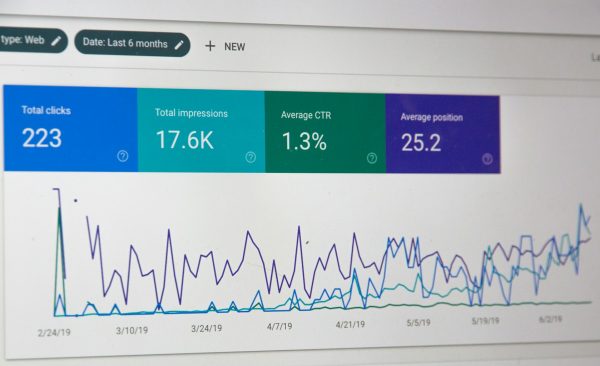

Meta descriptions might not directly impact SEO rankings, but they significantly influence click-through rates. A compelling meta description can mean the difference between a user choosing your link over a competitor’s in search results.

Missing meta descriptions force Google to generate snippets automatically—often resulting in poor, irrelevant, or cut-off text that doesn’t accurately represent your content. This reduces CTR and wastes valuable opportunities to attract visitors.
This guide shows you exactly how to fix missing meta description errors in WordPress using Nexus Pro, write compelling descriptions that drive clicks, and avoid common mistakes that hurt performance.
What Are Meta Descriptions?
Meta descriptions are HTML meta tags that provide a brief summary of your page content for search engines and users.
HTML Format:
<meta name="description" content="Your description here" />
How They Appear:
Your Page Title - Brand Name
yoursite.com
Your meta description appears as this preview text in search results.
It gives searchers a quick overview of what they'll find on your page.
Why Meta Descriptions Matter
Not a Ranking Factor (But Still Important): Google confirmed meta descriptions don’t directly affect rankings, but they indirectly impact SEO through:
Click-Through Rate (CTR):
- Well-written descriptions increase CTR by 5-15%
- Higher CTR signals quality content to Google
- Can improve rankings over time
User Experience:
- Helps users decide which result to click
- Sets accurate expectations
- Reduces bounce rate when matched to content
Social Sharing:
- Facebook, Twitter, LinkedIn use meta descriptions
- First impression when links are shared
- Controls your messaging on social media
How to Identify Missing Meta Descriptions
Before fixing the problem, you need to find which pages are missing descriptions.
Method 1: Manual Page Source Check
Steps:
- Visit any page on your site
- Right-click > “View Page Source”
- Press Ctrl+F (Cmd+F on Mac)
- Search for:
name="description" - If not found = missing meta description
Method 2: Google Search Console
Recommended Approach:
- Log in to Google Search Console
- Navigate to “Enhancements” or “Experience”
- Look for “Meta description” section
- Click to see affected pages
- Export list of pages with issues
What You’ll See:
- Pages without meta descriptions
- Pages with duplicate descriptions
- Pages with descriptions too short
Method 3: SEO Crawler Tools
Free Option – Screaming Frog:
- Download Screaming Frog (free for 500 URLs)
- Enter your website URL
- Click “Start”
- Go to “Page Titles” tab
- Click “Meta Description” column
- Filter by “Missing”
Paid Options:
- Ahrefs Site Audit
- Semrush Site Audit
- Moz Pro
Method 4: Check in Nexus Pro
Easiest Method:
- Open any post/page in WordPress
- Look at right sidebar in block editor
- Find “AI Summary & SEO” panel
- Check meta description field
- If empty = missing
How to Add Meta Descriptions with Nexus Pro
Nexus Pro makes adding meta descriptions simple with no coding required.
Step 1: Open Your Post or Page
- Log in to WordPress admin
- Navigate to Posts > All Posts (or Pages > All Pages)
- Click “Edit” on the post you want to optimize
- Block editor opens
Step 2: Locate the Meta Description Field
- Look at the right sidebar
- Find the “AI Summary & SEO” panel
- If collapsed, click to expand
- Locate the “Meta Description” field
Step 3: Write Your Meta Description
Best Practices:
- Keep it 150-160 characters
- Include your primary keyword naturally
- Make it compelling and actionable
- Match the actual page content
- Add a call-to-action
Example:
Bad: “This is a post about WordPress SEO.”
Good: “Complete WordPress SEO checklist with 25 actionable tips. Learn on-page optimization, technical SEO, schema markup, and performance strategies to rank higher in 2025.”
Step 4: Use the Character Counter
With Nexus Pro:
- Character count displays in real-time
- Turns yellow at 150 characters (warning)
- Turns red at 160+ characters (too long)
- Helps you stay within optimal range
Step 5: Preview in SERP Simulator
With Nexus Pro:
- View the SERP preview in the panel
- See how it appears in Google search
- Check for truncation
- Verify mobile display
- Adjust if needed
Step 6: Publish or Update
- Review your meta description one final time
- Click “Publish” or “Update” button
- Meta description is now live
- Google will use it in search results (usually)
Writing Compelling Meta Descriptions
Follow this formula for descriptions that drive clicks.
The Perfect Formula
Problem + Solution + Benefit + CTA
Example Breakdown:
“Struggling with WordPress SEO? [Problem] This complete checklist provides 25 actionable tips [Solution] to rank higher and drive more organic traffic [Benefit]. Start optimizing today [CTA].”
Optimal Length
Desktop:
- 155-160 characters maximum
- Google displays ~920 pixels
- Varies slightly by character width
Mobile:
- 120-130 characters safe
- Less space on mobile screens
- Gets truncated sooner
Recommendation: Keep descriptions between 150-155 characters for universal compatibility.
Include Your Target Keyword
Natural Placement:
- Use keyword once (not stuffed)
- Place early when possible
- Keep it readable
- Don’t force it
Example:
Target keyword: “wordpress security”
❌ Bad (keyword stuffing): “WordPress security WordPress security plugins WordPress security best practices WordPress security guide”
✅ Good: “Protect your WordPress site with these 10 essential security plugins. Compare features, pricing, and user ratings to find the best fit for your needs.”
Make It Action-Oriented
Power Words:
- Discover
- Learn
- Master
- Get
- Find
- Boost
- Improve
- Unlock
- Start
Examples:
“Discover the 7 schema types that improve SEO rankings. Complete implementation guide with validation tips and real examples.”
“Master WordPress performance optimization. Learn caching, image compression, and code minification techniques that reduce load time by 50%.”
Match the Content
Critical Rule: Your meta description must accurately reflect the page content. Misleading descriptions create high bounce rates.
Example Mismatch:
- Meta: “Learn 10 WordPress security plugins”
- Content: Article about WordPress speed optimization
- Result: User clicks, finds wrong topic, leaves immediately
Correct Approach:
- Read your content first
- Identify 2-3 main points
- Summarize accurately
- Include specific details (numbers, topics)
Add Emotional Triggers
Curiosity: “The one WordPress setting most people forget (it hurts SEO badly)”
Urgency: “Don’t let these 7 SEO mistakes destroy your WordPress traffic”
Social Proof: “Join 50,000+ WordPress users who boosted rankings with these techniques”
Fear of Missing Out: “Why successful WordPress sites use these 7 schema types (and you should too)”
Common Meta Description Mistakes
Avoid these errors that reduce CTR and hurt performance.
Mistake 1: Too Long (160+ Characters)
Problem: Descriptions get cut off with “…” in search results, losing important information.
Example: “In this comprehensive guide, we’re going to teach you everything you possibly need to know about WordPress SEO optimization including on-page techniques, technical strategies, performance optimization, and…”
Fixed (155 chars): “Complete WordPress SEO guide. Learn on-page optimization, technical strategies, performance tips, and schema markup to rank higher. Actionable checklist included.”
Mistake 2: Too Short (Under 120 Characters)
Problem: Wastes valuable space and doesn’t provide enough information.
Example: “WordPress tips for better SEO.”
Fixed: “Discover 25 WordPress SEO tips to boost rankings in 2025. Covers technical optimization, schema markup, content strategy, and performance improvements.”
Mistake 3: Duplicate Descriptions
Problem: Multiple pages using the same meta description confuse search engines.
How to Check: Use Google Search Console or Screaming Frog to identify duplicates.
Solution: Write unique descriptions for each page focusing on page-specific content.
Mistake 4: Keyword Stuffing
Problem: Unreadable descriptions that look spammy.
Example: “WordPress SEO WordPress optimization WordPress plugins WordPress themes WordPress tips WordPress guide WordPress tutorial”
Fixed: “Complete WordPress SEO guide with plugin recommendations, optimization techniques, and proven strategies to improve rankings and drive organic traffic.”
Mistake 5: No Call-to-Action
Problem: Passive descriptions don’t motivate clicks.
Example: “This article talks about WordPress performance optimization techniques.”
Fixed: “Boost your WordPress speed by 50%. Learn caching, image optimization, and code minification techniques. Start optimizing today.”
Mistake 6: Generic Descriptions
Problem: Vague, template-like descriptions don’t stand out.
Example: “Welcome to our blog where we share tips and information about various topics.”
Fixed: “Master WordPress SEO with expert guides, tutorials, and case studies. Proven strategies that have helped 10,000+ sites rank higher.”
Bulk Fixing Missing Meta Descriptions
If you have many pages without descriptions, use this systematic approach.
Step 1: Prioritize Pages
Fix These First:
- Homepage
- Top 10 landing pages (check Google Analytics)
- Product/service pages
- About and contact pages
- High-traffic blog posts
Fix These Later:
- Older blog posts with low traffic
- Archive pages
- Tag pages
- Author pages
Step 2: Create a Template
For similar pages, create a flexible template:
Blog Posts: [Topic]: [Main Benefit]. Includes [Key Features]. [CTA].
Product Pages: [Product Name] - [Key Benefit]. [Feature 1], [Feature 2], [Feature 3]. [Price/CTA].
Service Pages: Professional [Service] services in [Location]. [Key Benefit]. [Years] experience. [CTA].
Step 3: Batch Update
Using Nexus Pro:
- Go through posts systematically
- Use Quick Edit to access meta fields faster
- Copy-paste template and customize
- Update 10-20 posts per session
Time Estimate:
- 2-3 minutes per description
- 20-30 per hour
- 100 descriptions = 3-4 hours
Step 4: Monitor Performance
Track in Google Search Console:
- Note CTR before updates
- Wait 2-4 weeks for Google to update
- Check CTR improvements
- Refine approach based on results
Testing and Validation
Verify your meta descriptions are working correctly.
Check in Search Results
Manual Test:
- Google:
site:yoursite.com [page title] - Find your page in results
- Verify meta description displays correctly
- Check for truncation
Note: Google doesn’t always use your meta description. They may generate their own based on the search query.
Use Preview Tools
Nexus Pro SERP Preview:
- Shows exact appearance in search
- Desktop and mobile views
- Character count
- Truncation preview
- Real-time updates
External Tools:
- Portent’s SERP Preview Tool
- Merkle’s SERP Simulator
- Yoast SEO Preview
Monitor Click-Through Rates
Google Search Console:
- Go to Performance report
- Filter by page
- Review CTR column
- Compare before/after meta updates
- Identify opportunities for improvement
Target CTRs by Position:
- Position 1: 25-35% CTR
- Position 2-3: 15-25% CTR
- Position 4-10: 5-15% CTR
If your CTR is below these ranges, test new meta descriptions.
Advanced Meta Description Strategies
Dynamic Descriptions for Different Queries
Google sometimes customizes snippets based on search query. You can’t control this, but you can write descriptions that work for multiple intents.
Example: “Complete guide to WordPress SEO. Learn technical optimization, schema markup, content strategy, performance improvements, and AI-ready features. Beginner to advanced tips included.”
This works for:
- “wordpress seo guide”
- “technical wordpress seo”
- “wordpress schema markup”
- “wordpress performance seo”
A/B Testing Descriptions
Process:
- Note current CTR
- Write new description
- Update and wait 2-4 weeks
- Compare CTR results
- Keep winner or test again
What to Test:
- Different CTAs
- Feature focus vs benefit focus
- Question format vs statement
- Emotional vs logical appeal
Seasonal Updates
Keep Descriptions Fresh:
- Update year references annually
- Refresh statistics and data
- Add current trends
- Remove outdated information
Example Update:
Old (2023): “WordPress SEO guide for 2023 with optimization tips and strategies.”
Updated (2025): “WordPress SEO guide for 2025. Includes AI optimization, schema markup, Core Web Vitals, and voice search strategies.”
Conclusion
Missing meta descriptions are easy to fix but have significant impact on your click-through rates and organic traffic. By systematically adding compelling, optimized descriptions to your WordPress pages, you can improve CTR by 5-15% or more.
Quick Action Plan:
- Audit your site for missing descriptions
- Prioritize high-traffic pages first
- Use Nexus Pro to add descriptions easily
- Follow the 150-155 character guideline
- Include keywords naturally
- Add clear calls-to-action
- Match content accurately
- Monitor CTR improvements in Search Console
With Nexus Pro, you get:
- Built-in meta description fields
- Real-time character counter
- SERP preview tool
- Mobile and desktop views
- No additional plugins needed
- Easy bulk editing
Start with your homepage and top 10 pages today. Then work through your content systematically. Monitor the results and refine your approach based on what drives the best click-through rates.
Related Articles:
- Complete WordPress SEO Checklist: 25 Tips to Rank Higher
- Open Graph vs Twitter Cards: Social Meta Tags Guide
- How to Add Schema Markup to WordPress in 5 Steps
- WordPress Performance Optimization: Speed Up Your Site